How to Export a Print-Ready PDF from Canva

You’ve finished your design in Canva and it looks great on your screen. Now it’s time to send it to SIG-1 for printing.

Before you hit Download, there are a few important settings that can make the difference between a file that’s ready to print and one that needs additional work.

The good news is that Canva makes this pretty easy once you know which settings to use.
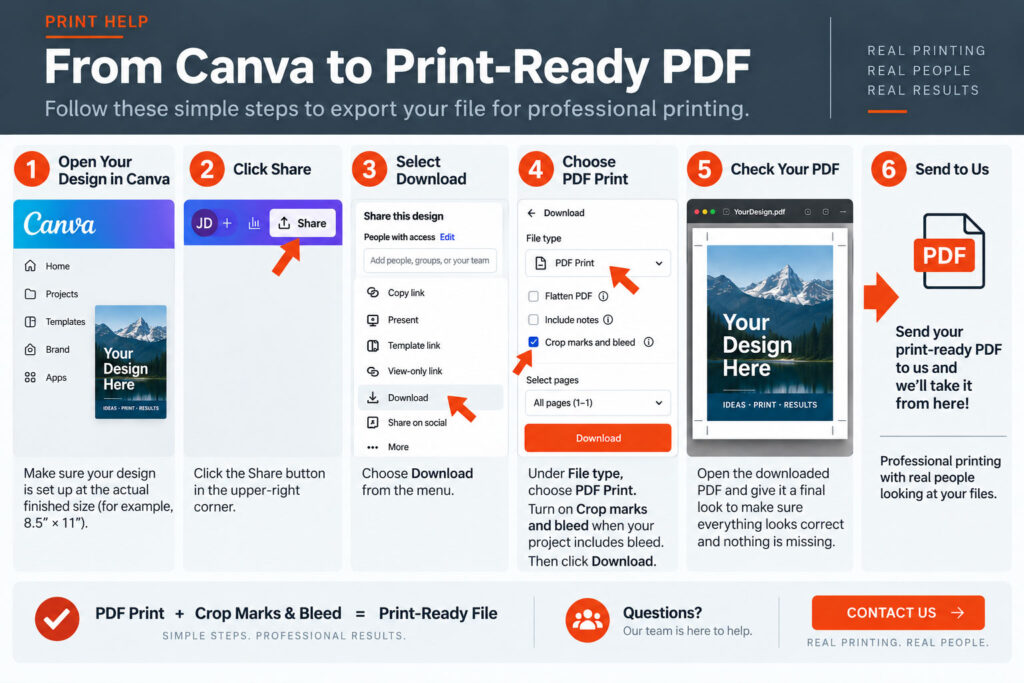
Start With the Correct Page Size

Before exporting your file, confirm that your Canva document is set up at the actual finished size you want printed.

If you’re designing an 8.5″ × 11″ flyer, for example, your Canva document should be 8.5″ × 11″.

Don’t make the page larger to create bleed. Canva handles the bleed area separately.

From Canva to print ready PDF

Check Your Bleed

If photographs, colors or graphics are supposed to extend all the way to the edge of your finished piece, make sure they extend into Canva’s bleed area.

In Canva, select:

File → Settings/View Settings → Show Print Bleed

Extend any background images, colors or graphics that are supposed to reach the finished edge completelythrough the bleed area.

For most projects, SIG-1 recommends 1/8″ (.125″) bleed on all sides.

Need more help with bleed? See our guide:

How to Add Bleed in Canva for Professional Printing

Keep Important Information Inside the Safe Area

Text, logos, phone numbers, QR codes and other important elements shouldn’t sit right against the edge of your finished piece.

Keep important information at least 1/8″ inside the finished trim edge unless your design specifically requires otherwise.

A simple rule to remember:

Backgrounds go OUT into the bleed. Important information stays IN away from the trim.

Download Your File as PDF Print

When your design is ready:

  1. Click Share in the upper-right corner of Canva.
  2. Select Download.
  3. Under File Type, choose PDF Print.
  4. Turn on Crop marks and bleed when your project contains bleed.
  5. Download your PDF.

For most finished page layouts, PDF Print is the format we prefer to receive at SIG-1.

Avoid sending screenshots of your Canva design or substituting a JPG or PNG when you can provide the print PDF.

Open the PDF Before You Send It

This takes about 30 seconds and can catch surprisingly common problems.

After downloading your PDF, open the actual PDF file—not just the Canva design—and look through every page.

Check:

  • Is the finished page size correct?
  • Is all of your text there?
  • Are photographs and graphics displaying correctly?
  • Are any elements unexpectedly missing?
  • Are backgrounds extending through the bleed area?
  • Are important elements safely away from the trim?
  • If the document has multiple pages, are they in the correct order?

What you see in the exported PDF is much more important to us than what you see inside Canva.

A Word About Image Quality

Creating a PDF doesn’t magically improve the quality of the images inside it.

A low-resolution photograph placed into Canva will still be a low-resolution photograph after you create a PDF.

Images copied from websites or social media can look sharp on a screen but may not reproduce well in professional printing.

Whenever possible, use the highest-resolution original photographs and graphics available.

What About RGB and CMYK?

Your computer monitor creates color with light, while printing creates color with ink or toner. Because of this, some bright colors you see on your screen may reproduce differently in print.

This is especially noticeable with extremely bright blues, greens and other highly saturated colors.

We’ll explain this in more detail in our RGB vs. CMYK for Professional Printing guide.

Not Sure Your PDF Is Ready?

Send it to us.

You don’t need to understand prepress, bleed, resolution and color management just because you designed your project yourself.

At SIG-1, we believe having an experienced person look at your file before production is still an important part of professional printing.

If something doesn’t look right, we’d much rather catch it before your job goes to press.

SIG-1 Graphics

Professional printing with real people looking at your files.

Sacramento, California

CALL SHANE

READY TO MAKE YOUR NEXT PROJECT?